
Keyboard not recognized in Windows 11
If Windows 11 does not recognize your keyboard, try these troubleshooting steps in order, as any one of these could be the cause:
- Unplug/Re-plug Keyboard
- Disable Filter Keys
- Disable Fast Startup
- Run the Keyboard Troubleshooter
- Reinstall Keyboard Driver
1] Re-plug Keyboard
When you plug a USB device into your computer, it recognizes the device and installs its driver (if required). Sometimes it fails to do so. Therefore, try removing and then re-plugging the keyboard, and try different USB ports if possible. In most cases, your computer will then recognize the keyboard.
2] Disable Filter Keys

Filter Keys are notorious for causing this kind of trouble. So, if you are facing this issue, try disabling Filter Keys. To do that, follow these steps:
- Launch Settings with Win + X > Settings.
- Click Accessibility, then Keyboard. (On Windows 10, this is Ease of Access > Keyboard.)
- Turn off the "Filter keys" toggle.
Hopefully, this will fix the USB keyboard not recognized issue for you.
3] Disable Fast Startup
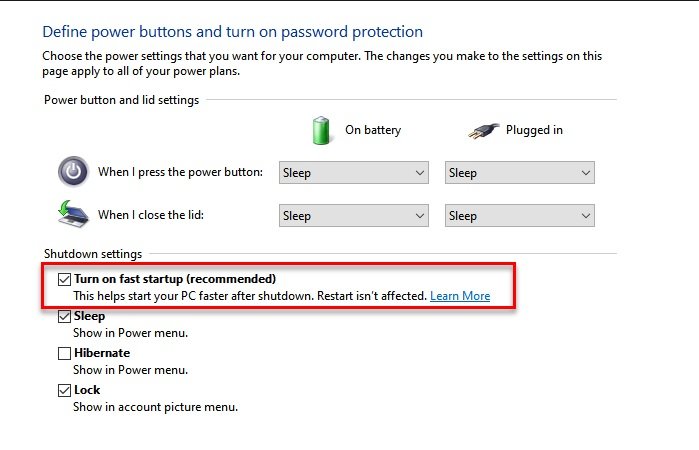
Fast Startup can be a mixed blessing for some Windows users. It speeds up the startup process, but sometimes it stops some drivers from being installed. Therefore, try to disable Fast Startup.
To do that, follow these steps:
- Launch Control Panel from the Start Menu.
- Click Power Options > Choose what the power button does > Change settings that are currently unavailable.
- Now, untick Turn on fast startup and click Save Changes.
Finally, restart your PC and, hopefully, it will recognize your keyboard.
4] Run the Keyboard Troubleshooter
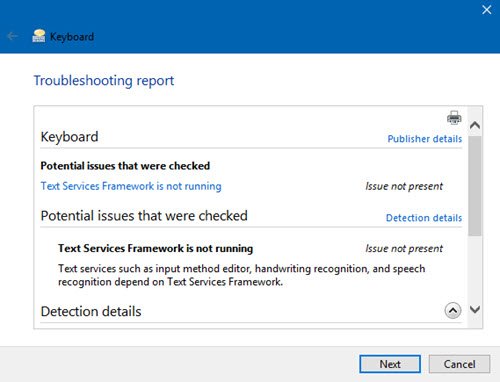
Open the Troubleshoot page in Settings and run the Keyboard Troubleshooter. In Windows 11, go to Settings > System > Troubleshoot > Other troubleshooters. If the Keyboard troubleshooter is not listed on your version of Windows, skip to the next step.
5] Reinstall Keyboard Driver
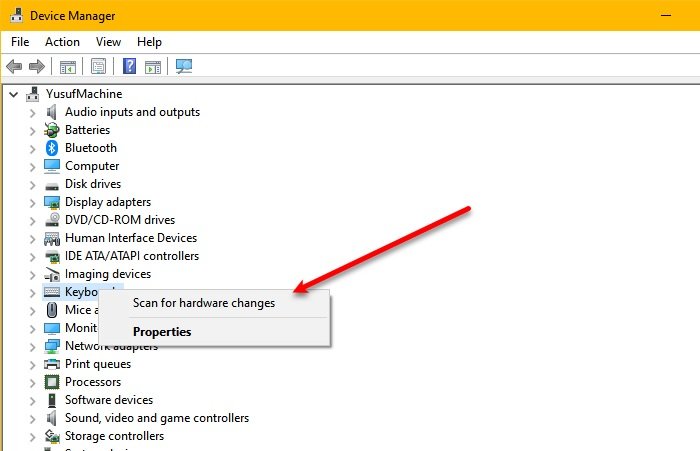
If there is a problem with your keyboard driver, you may face this issue. Therefore, reinstalling the keyboard driver can fix it. To do that, launch Device Manager with Win + X > Device Manager, expand Keyboards, right-click your keyboard driver, and select Uninstall device.
This uninstalls the keyboard driver. To reinstall it, go to Device Manager, right-click Keyboards, and select Scan for hardware changes. If this doesn't work, try updating your keyboard driver by right-clicking it and selecting Update driver. For more detail, see our article "Windows Keyboard Driver Update/Reinstall."
If none of these steps work, please submit a ticket through our help desk at: Open a technical support ticket
Give feedback