
How to use a PC keyboard on a Mac
Configuring Your Control, Option, & Command Modifier Keys for Mac
A Mac computer will recognize PC keyboards such as the Das Keyboard 4C TKL, Prime 13, Model S, and 4 Professional. However, if you prefer to have the Control, Option (Alt), and Command keys work the way they do on a Mac keyboard, you will need to adjust your keyboard settings in System Settings (System Preferences on older versions of macOS). First, open System Settings from the Apple menu, and then click Keyboard.
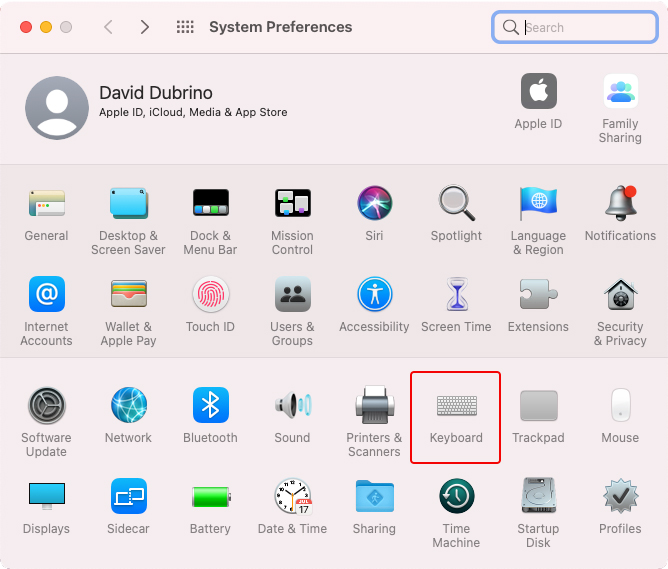
Then click on Modifier Keys... On current versions of macOS, click Keyboard Shortcuts... first, and then select Modifier Keys in the sidebar. The screenshots below are from an older version of macOS, but the options are the same.
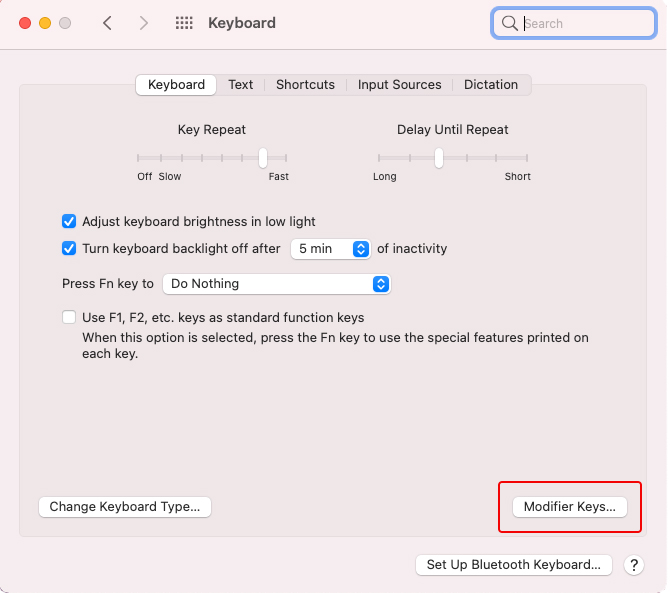
From here, swap your modifier keys to match the typical macOS configuration.
- The WINDOWS key becomes the ALT / OPTION key on macOS
- The ALT key becomes the COMMAND key on macOS
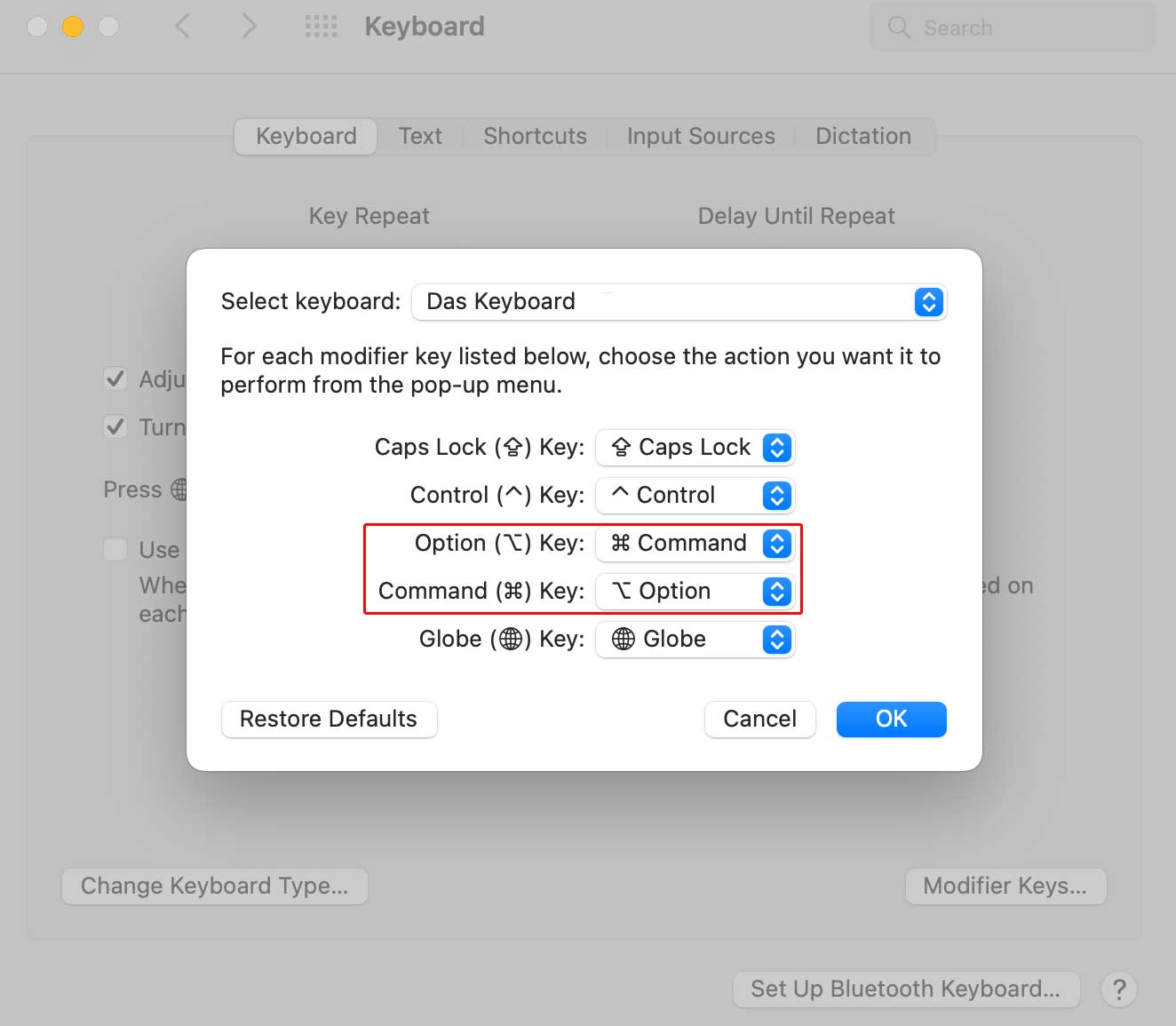
This lets you copy, paste, select all, and use other shortcuts with your Command keys.
Configuring Your Function Keys for Mac
If you would like to configure your keyboard's volume, media, and brightness controls to match the inscriptions on the keyboard, you can easily remap the keys using free third-party software. We suggest using the remapping program Karabiner-Elements.
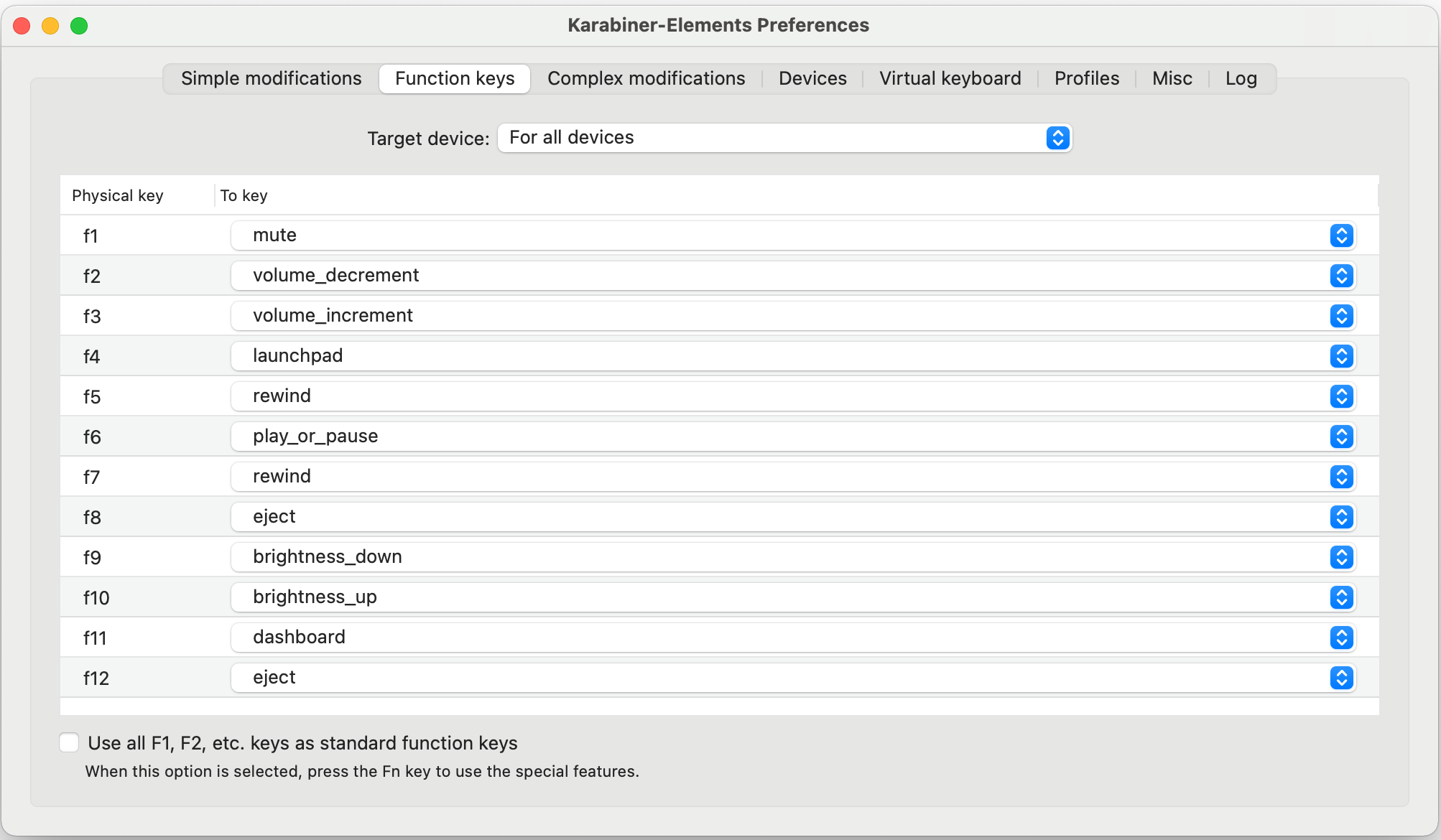
Karabiner-Elements is a simple, free, and safe key remapping program for Mac. After you install and launch it, you will be able to map your function keys as well as any other keys that you would like to remap. Below is an example of how the function keys are mapped when you plug a PC keyboard into a Mac.
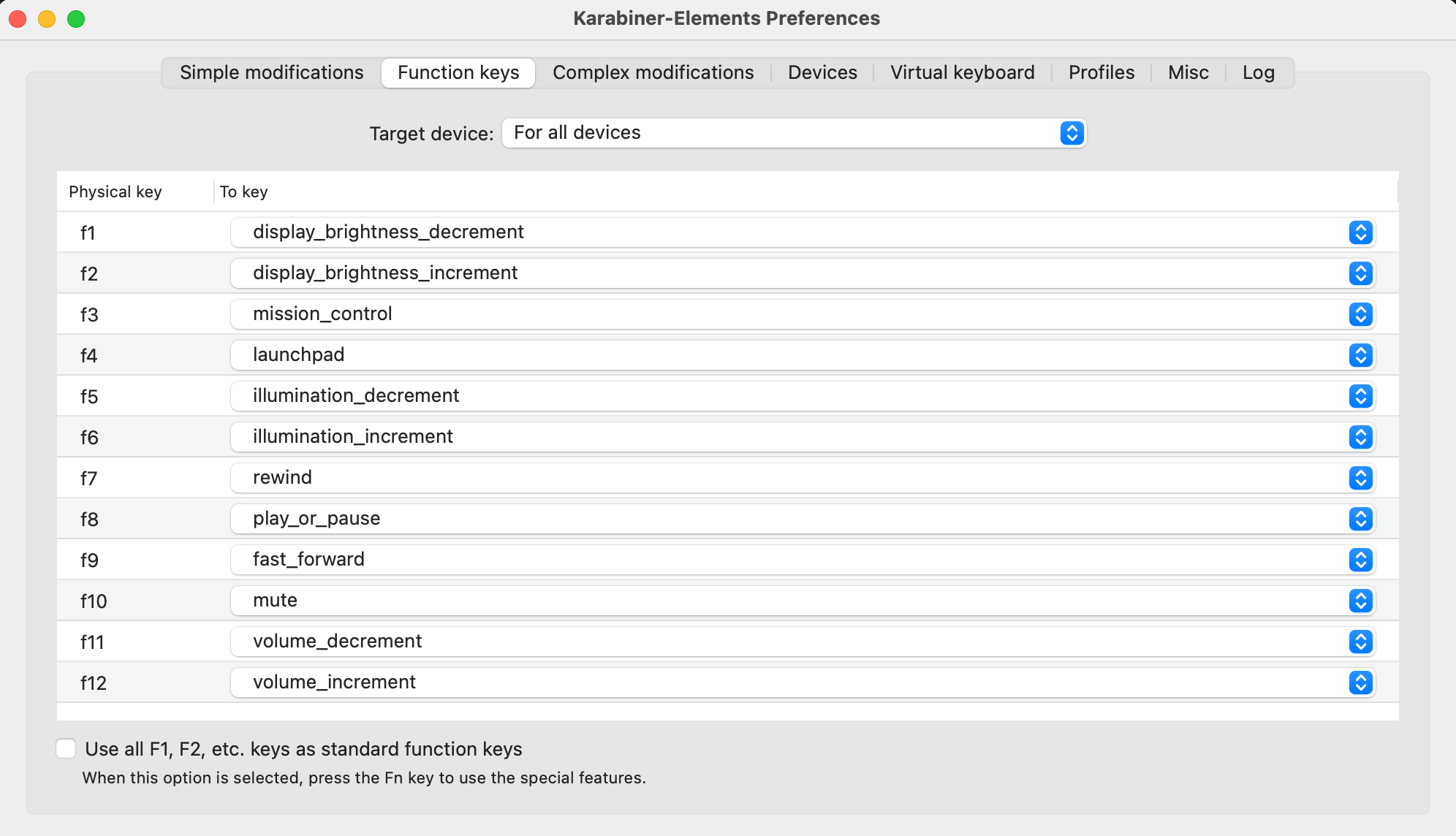
To remap a 4C TKL to match the inscriptions, just select the matching media controls:
Note: Das Keyboard models 4Q and X50Q are Windows-only keyboards. This is due to their hardware and firmware, which control the lighting, smart controls, and Q Software.
Attachments
Give feedback