
DeltaForce 65 user manual
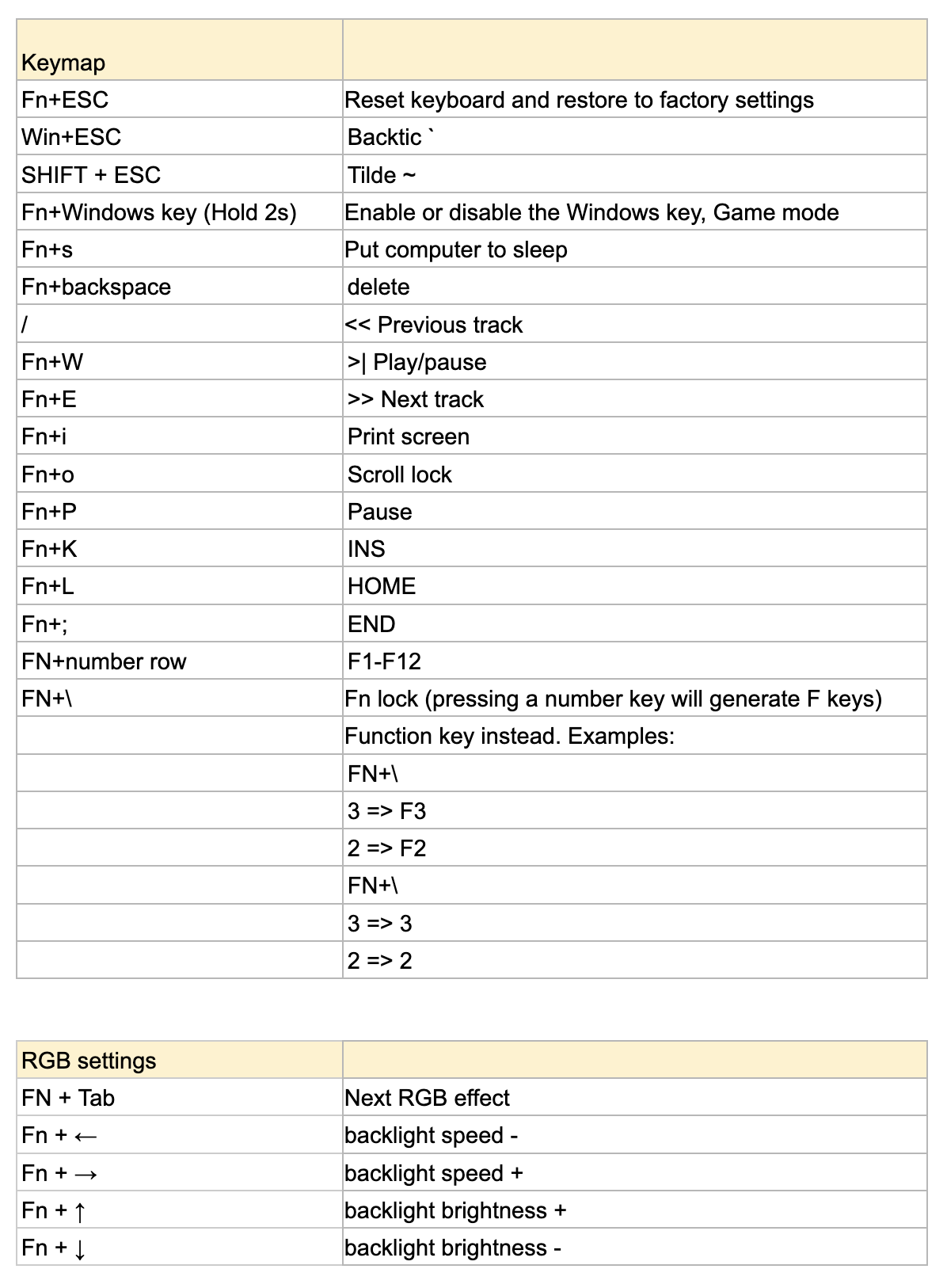
This document provides instructions for using the DeltaForce 65 keyboard. It includes a list of built-in keyboard shortcuts for various functions such as resetting to factory settings, enabling Game mode, media controls, and backlight adjustments.
The manual also outlines how to customize the keymap and LED colors using the VIA app, which requires downloading a keyboard configuration JSON file and using a Chromium-based browser. It also includes instructions for updating the keyboard's firmware using QMK Toolbox and a specific firmware file while in DFU mode.
Customizing the Keymap and LED Colors
The layout of the DeltaForce can be changed to your liking. Mac users can also reassign special keys to behave as they should on macOS.

This guide explains how to use the VIA website to configure the key layout and RGB LED colors. This works on all operating systems: Windows, macOS, and Linux distributions.
- Connect your keyboard to the computer.
- Download the keyboard configuration JSON file:
- Launch Chrome or another Chromium-based browser (only Chromium-based browsers work at this time).
- Go to https://usevia.app/.
- Click
Setting > Show Design Tab, thenDesign, and upload the JSON file you just downloaded.
After the keyboard is successfully recognized by the VIA software, the keyboard name will be displayed. You can then configure your keyboard as you like in the VIA software.
Firmware Update
If the keyboard is acting up or if there is a new firmware version, follow these instructions to install the firmware. DO NOT UPDATE the firmware if your keyboard is working correctly.
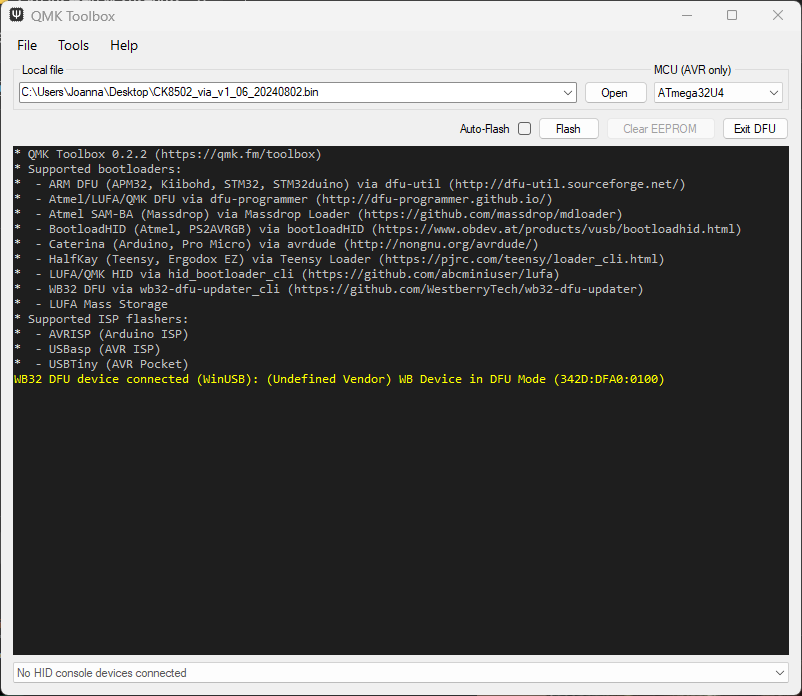
- Download and run the software updater called QMK Toolbox (Windows or macOS required):
- Use this firmware file:
- Disconnect the keyboard from the computer.
- While holding down
ESC, reconnect the keyboard to the computer. This will start the Device Firmware Upgrade (DFU) mode that is needed to flash the firmware. - If at any point you are prompted to install drivers, proceed and install them.
- Click the
Flashbutton. - When done, disconnect the keyboard, quit the app, and reconnect the keyboard.
Attachments
Give feedback