
Update firmware on the Das Keyboard 6 Professional
Note: When performing these steps, please make sure that your Das Keyboard 6 Professional is the only keyboard plugged into your computer. When updating, do not disconnect your board or any other USB devices. In the event of an update failure, please close the updater, unplug your board, and contact support.
Step 1. Download the following .zip file:
Das_Keyboard_6_Pro_fw_v0115-20221024.zip
This file contains both the firmware updater and the newest firmware.
Step 2. Unzip the downloaded file. You will see this file:
- Das Keyboard 6 Pro fw v0115-20221024.exe
Step 3. Double-click the .exe file to run the program. If you receive a security warning, please refer to the steps at the end of this article to bypass it.
Step 4. The software will appear as shown below. Select the "green" button to display the current firmware version on your keyboard, or open the "blue" button dropdown and select your board (the dropdown will likely say "Das Keyboard"; this is your board).
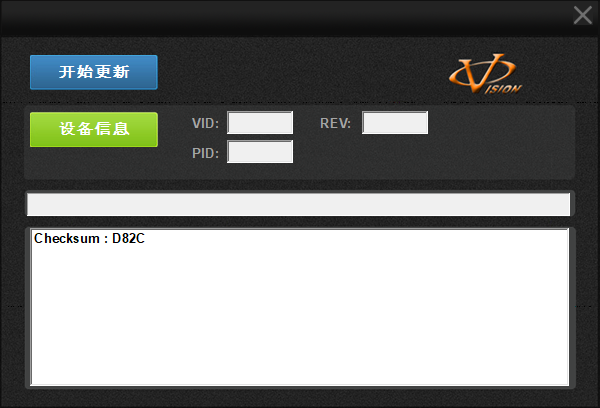
Step 5. Select the "green" button to display the current firmware version on your keyboard. Note this version in case you need to contact support.
Step 6. Finally, select the "blue" button to begin the install/update.
Step 7. The updater will automatically begin the update process. Please allow your board to sit for 5-10 minutes.
Step 8. Once complete, you can use your board as normal, with updated firmware!
If the firmware updater prompts a security warning:
Your computer may display a security alert like this one:
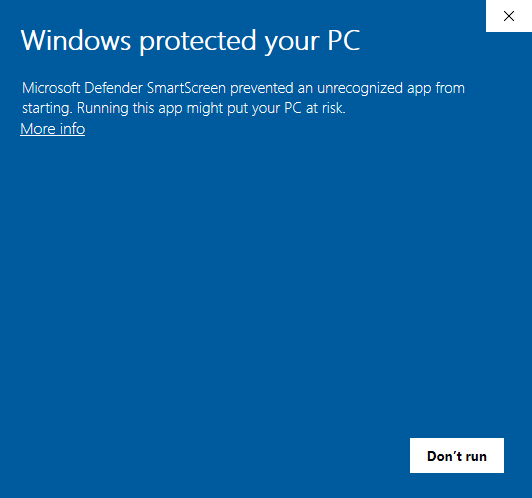
If you see this security warning, click "More info" and select "Run anyway":
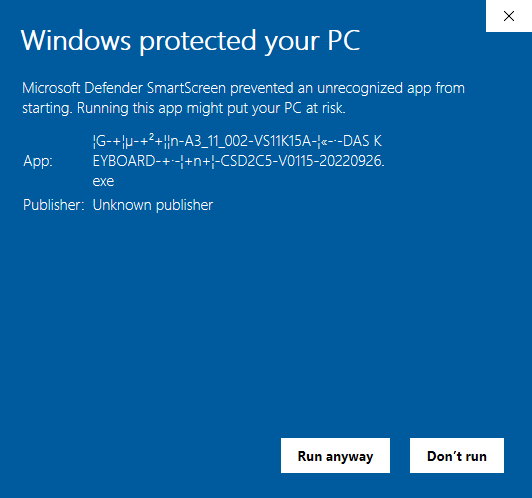
Once this is done, you can return to Step 4 in the instructions above.
Give feedback